AMARINETransport Systems
Try the demo Sign in
User guide · Workshop

The workshop portal, step by step.

For garages and workshops that look after lorries and trailers for operators on Amarine, and for their own customers. From the invitation to the signed inspection sheet and the invoice.

Part 1

Getting started

How a workshop gets onto Amarine, and what it can see once it is there.

What you need

  • A computer, or a tablet at the ramp, with an up to date browser: Chrome, Edge, Safari or Firefox. There is nothing to install.
  • An email address. If an operator has invited you, it must be the address the invitation was sent to.
  • The address to sign in: app.amarineone.co.uk. From amarineone.co.uk, press Sign in and choose The office portal.

To sign in, type your Email address and Password and press Sign in. If you would rather not type a password, press Email me a secure sign-in link. If you have forgotten it, press Forgot password? and follow the email.
When an operator invites you

The operator sends an invitation to your email address. The email names the operator and the vehicles, and has no button to press on purpose: an invitation cannot be accepted by whoever it is forwarded to.

  1. Go to app.amarineone.co.uk. If you have no account yet, press Create an account, then A garage or workshop.
  2. Type the Email address the invitation was sent to and a Password of at least 8 characters, and press Create account. Any other address will find nothing.
  3. Open the confirmation link in the email we send, then press Sign in.
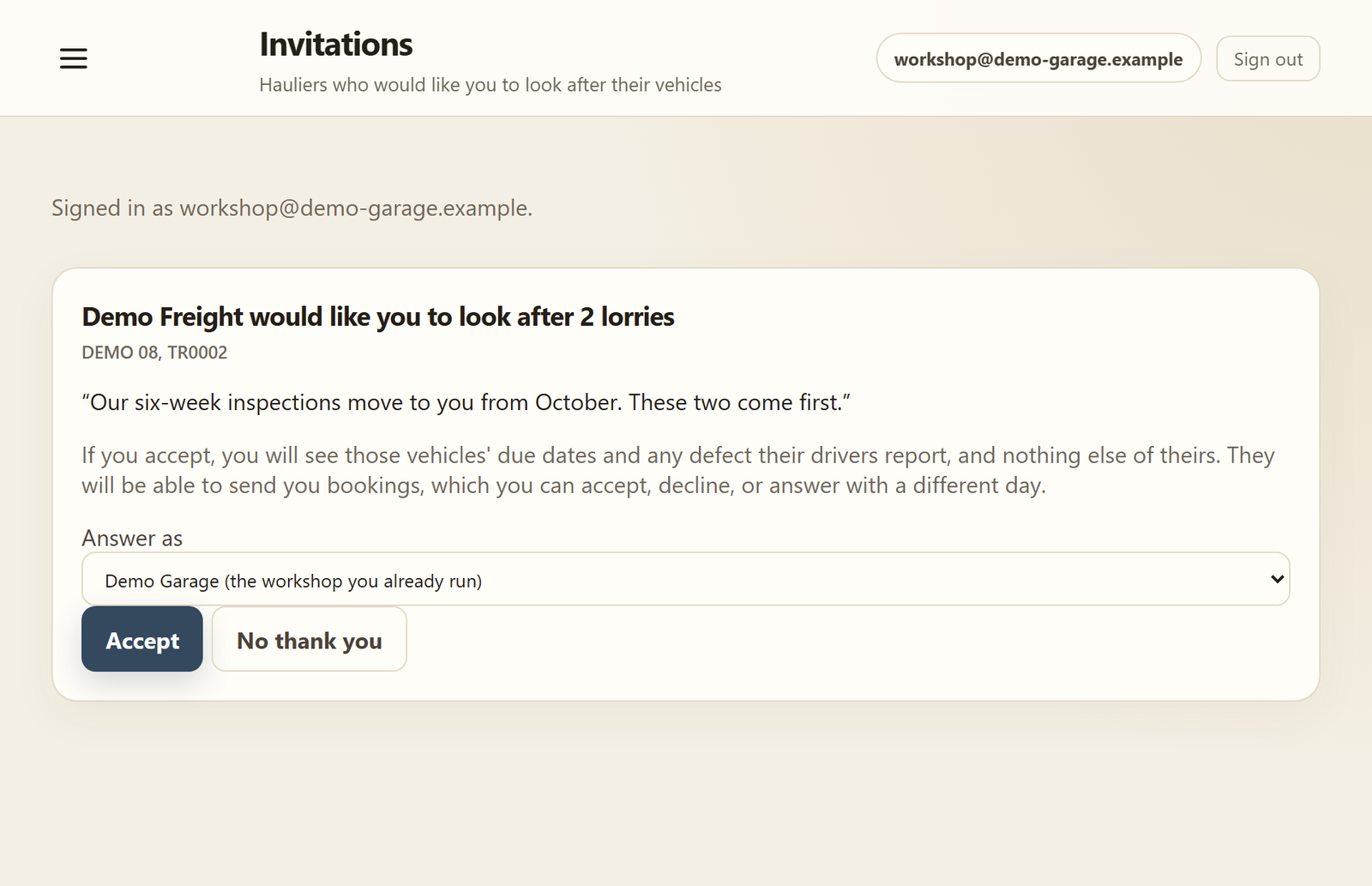
  4. The invitation is waiting under Invitations. It says which operator it is and which lorries they would like you to look after.
  5. Press Accept and confirm. If you do not run a workshop on Amarine yet, accepting creates your company, and you own it. If you already run one, choose it under Answer as first.
An operator's invitation to look after their lorries, with Accept and No thank you
An invitation waiting under Invitations.
Good to know

Creating an account joins you to nothing. No company exists until you accept, and the operator gets an appointment, not a way into your company. To turn an invitation down, press No thank you; the operator sees any reason you give.

Your connect code

If your workshop is already on Amarine, an operator can appoint you with your connect code instead of an invitation.

  1. Open Work ahead. Your code is in the Your connect code panel, in the form SVC-XXXX-XXXX. Press Copy and give it to the operator.
  2. The operator types it in, checks your name and company number, and ticks the lorries.
  3. A card appears on Work ahead saying the operator wants you to look after their lorries. Press Accept, or Decline. Until you answer you see nothing of theirs.
Your connect code: SVC-DEMO-0000 with Copy and Change it
Your connect code, at the foot of Work ahead.
Good to know

Change it gives you a new code. The old one stops working at once.

A garage on its own, for its own customers

A workshop that uses Amarine for its own customers, without being invited, registers as a company. It costs £20 a month, the first month is free, and prices exclude VAT.

  1. At app.amarineone.co.uk press Create an account, then A company.
  2. Under Organisation type choose Service provider, fill in the company's details, and accept the Terms and the Data Processing Agreement.
  3. Press Submit registration. We check it and set your workspace up, and tell you by email.
Good to know

A workshop that an operator invites uses the portal free of charge for that operator's work.

What you see of an operator

  • Only the vehicles the operator named. Their other vehicles are not shown at all.
  • For those vehicles: when the PMI, brake test, MOT and tachograph calibration are due, any open defect their drivers have reported, and what has been done to the vehicle.
  • Never their costs, their road tax or their insurance.

The operator can take a lorry back, and you stop seeing it at once, or end the appointment altogether.

Part 2

Work ahead

The first screen after you sign in: what falls due across every operator who appointed you.

Start work on a lorry

A lorry is at the ramp. This is the short way in: the registration, everything the garage knows about that lorry, and the sheet, without looking for a booking first.

  1. Open Start work.
  2. Type the Registration and press Look it up. Or press Take a photo of the lorry and photograph the front of it: the photograph only fills the registration in, and it is kept nowhere.
  3. Read what comes back: what is due (overdue and untracked included), the defects its drivers have reported and nobody has answered, and What keeps coming back, which is every item you marked X, R or A on two or more of your own signed sheets for it, and every item its drivers have reported twice or more in a year.
  4. Under What are you doing? press the kind of work. The sheet opens on it.
Start work: the registration typed in, what is due, the open defects, what keeps coming back, and the kinds of work
The lorry in front of you, before the first box is ticked.
Good to know

If the operator has already agreed a date for that lorry, the sheet opens on that booking. If they have not, the arrival itself becomes the booking, agreed, and the operator is told their lorry is in. Either way they still confirm the work into their own records at the end, or do not. A registration nobody has is said to be unknown: add the lorry under Customers with the details off it, and open a sheet from there.

Reading Work ahead

  • The tiles at the top, Overdue, Next 7 days, Not tracked and Vehicles, are also filters. Press one to show only those vehicles; press it again to clear it.
  • The panels Waiting for your reply, Today's booked work and Reported defects are what needs you today.
  • The table has one row for each vehicle, with its PMI, brake test, MOT and tachograph dates. A date shows how far off it is, or that it is overdue, and a Booked or Offered mark when a date is in hand.
  • Search by registration, operator or make, or filter by status. With several operators, choose one from the list above the table.
Work ahead: tiles for overdue and the next seven days, bookings waiting, defects, and the vehicles with their due dates
Work ahead, with an operator's vehicles and what they have due.
Good to know

What counts as urgent or due soon follows each operator's own warning window, so two operators' vehicles with the same date can be coloured differently.

Opening a vehicle

Press Open on a row. The vehicle shows what is due, its open defects and what has been done to it. From here you can offer the operator a date for a check or a defect (see Offering a date yourself).

Part 3

Bookings

A booking is a date for a vehicle, agreed between the operator and you. Nothing is agreed until the other side answers, and each card says whose turn it is.

Answering a booking

  1. Open Bookings. A card that says They are waiting on you. needs your answer.
  2. To take it, press Accept. The booking is booked in.
  3. To suggest a different time, press Another day, choose the date and time, write why (for example "No ramp free that morning"), and press Offer this instead. It is the operator's turn now.
  4. To refuse it, press Decline and say why. The operator reads what you write.
Bookings: one waiting for an answer with Accept, Another day and Decline, and one booked in
A booking waiting for you, one waiting for the operator, and one booked in.
Good to know

How this date was agreed under each card shows every offer and answer, in order. The operator is told of every answer in their own messages.

Offering a date yourself

  1. On Work ahead, press Open on the vehicle.
  2. Press Book next to the check or the defect.
  3. Fill in When and, if you like, Anything they should know, and press Offer this date.

The operator accepts it, offers another day or declines, and the planner on their side shows the check as Offered until they answer.

Cancelling a booking

Either side can cancel a booking that is waiting or booked in. Press Cancel and say why; the reason is required, and the other side sees it.

Saying what you did

When the work on a booked-in vehicle is finished, tell the operator what was done. They confirm it into their own records.

  1. On the booking, press Say what you did. If a sheet is already signed, the form is filled in from it.
  2. Check What was done, the Mileage and Unit, the Defects found and what was Put right.
  3. Fill in Net £ and VAT £ if you know them. Leave them blank if you do not: blank is not the same as £0.
  4. Press Say this is done. The booking shows not recorded yet until the operator confirms it.
Good to know

If the operator sends it back, the card tells you why and the booking is booked in again. Say what you did once more, with their reason in front of you. Signing a sheet does not close a booking; this step does.

Part 4

Inspection sheets

The inspection sheet is the paper sheet on a screen: the same items, the DVSA Inspection Manual references, the tyre and brake readings and the fault page. Once signed it cannot be changed, and the operator can read it in their own records without asking you for it.

Starting a sheet

  1. For an operator's vehicle, open the booking (it must be booked in) and press Fill in the sheet. For your own customer, open Customers and press Open a sheet on the vehicle.
  2. Choose what kind of work it is: PMI inspection, Safety inspection, MOT preparation, Brake test, Repair, Service or Something else.
  3. The sheet opens, with the vehicle's details already on it.
Choosing the kind of work for a customer's vehicle: PMI, Safety inspection, MOT preparation, Brake test, Repair, Service or Something else
Choosing the kind of work.
Good to know

The kind of work is written on the sheet and cannot be changed later. A trailer gets the trailer sheet by itself. A booking has one sheet: pressing the button again opens the same one, and Carry on with the sheet takes you back to a draft.

At the ramp

  1. Check the details the sheet opened with. Check these details at the top shows the chassis, the ministry number, the make, the model, the year and the two dates, as they were copied from the record. Look at the lorry: press These are right, or put them right and press Save my corrections. A correction goes on this sheet, and on your own customer's vehicle so the next sheet starts right; an operator's own record is theirs, and is not changed by you.
  2. Fill in the inspection details at the top: Date carried out (needed to sign), Odometer and its Unit, Laden and Location. The last recorded odometer reading is shown under the box.
  3. Go through each section and tap one code for every item:
    • S serviceable
    • X needs attention
    • R adjusted or repaired
    • A advisory
    • NA not applicable
  4. For an X, R or A, write what you found or what you did in the box that opens. An X must have words before the sheet can be signed.
  5. Tap next service on an item to flag it to watch at the next visit. Tap a chosen code again to clear it.
  6. Press Next unanswered at any time to jump to the first item without an answer.
Check these details: the chassis, ministry number, make, model, year and the two dates, with These are right and Save my corrections
What the sheet opened with, for you to confirm before the first item.
The inspection sheet: each item with the codes S, X, R, A and NA, its IM reference, and notes under an advisory and a repair
Items answered, with an advisory and a repair written up. The bar at the top counts what is answered.
The top of the inspection sheet: vehicle details, date carried out, odometer, laden and location
The top of the sheet: the vehicle's details and the inspection details.

Tyres and brakes

  • For each axle and each tyre position, and the spare: Tyre size, Tread (mm), Pressure (PSI) and the date it was Manufactured (WWYY).
  • For each axle end: the brake temperature and the lining, in millimetres or per cent, and the Ambient air temperature (°C).
  • Tyre sizes can be brought forward from the last signed sheet; check them before you rely on them. Tread, pressures, linings, temperatures and tyre dates are never carried forward. A box left blank is not recorded.

The fault page

Every item marked X, R or A gets a line on the fault page by itself. Add the notes or action taken, whether it was customer damage, the time in hours (0.25 is a quarter of an hour) and your initials. Add a line with no item is for travel, consumables and anything else.

The fault page: each fault with the notes or action taken, customer damage, time in hours and initials, and Add a line with no item
The fault page, filled in by itself from the items marked X, R and A.

Saving and coming back

  • The sheet saves itself shortly after you stop typing. The bar at the top says Saving… and then the time it was saved. Save progress saves at once.
  • If the connection drops, a copy is kept in the browser tab. When you come back you are asked whether to restore it or use the saved version.
  • A draft is private to your workshop until it is signed. Carry on later from Inspection sheets with Continue inspection.

Review and sign

  1. Press Review and sign.
  2. Add any Notes and what to look at At the next service.
  3. Fill in Who carried it out, which is your signature, and the Supervisor, if one checked it. Leave the supervisor blank if nobody did.
  4. Press Sign it off and confirm. Everything on the screen is saved first; if that fails, nothing is signed.
Signing the sheet off: notes, what to look at next service, who carried it out, and the Sign it off button
The signing panel at the end of the sheet.
Before you sign

Sign it off stays greyed out while any item has no answer or any X has no words, and the screen says how many are left. A signed sheet cannot be changed afterwards. If something on it is wrong, the answer is another sheet.

After signing

  • The sheet is on the booking, and the operator is told. They accept it into their records, choosing which due date it answers, and you are told when they do.
  • If the operator sends it back with a question, you get a message and the sheet shows it. Write Your answer and press Send this answer.
  • For your own customer's vehicle, Invoice this work starts the invoice from the sheet.

When a signed sheet is wrong

  1. On the sheet, open Something on this sheet is wrong.
  2. Write Why is it being withdrawn. The operator reads it.
  3. Press Withdraw this sheet and confirm.

A withdrawn sheet is never deleted or changed. It stays on the record, marked withdrawn, and the booking can have a fresh sheet.

Printing and emailing a sheet

  • Print / save as PDF is on every signed sheet. It prints the sheet with your logo and name at the top, the items with their references, the tyre and brake readings, the fault page and the signatures.
  • To email it, fill in To under Send this inspection sheet (the customer's address on file is filled in for you), add a note if you like, and press Send. The PDF goes attached, and replies come to your company.
  • Only a signed sheet can be sent. A draft is not finished.
A signed sheet: Print or save as PDF, the signed banner with Invoice this work, and Send this repair sheet with To, a note and Send
A signed sheet, ready to print or email.

Finding a sheet

Inspection sheets lists every sheet, newest first. Search, choose a Status (draft, signed or withdrawn) or dates, and press Apply filters. A sheet the operator has queried says Sent back to you.

The list of inspection sheets with drafts and signed sheets, search and status filters
Every sheet, drafts included.
Part 5

Invoices

An invoice starts already written from the booking and the signed sheet. A draft is private to you and has no number; the number is taken when you issue it.

Raising an invoice

  1. For an operator's booking, press Raise an invoice on the booked-in booking. The draft has the operator's details, the registration, the references, one line for each fault on the signed sheet, and your standing charge for that kind of work if you set one.
  2. For your own customer, press Invoice this work on a signed sheet, New invoice on a vehicle in Customers, or New invoice on Invoices, then choose the customer and the vehicle and press Create draft.
Good to know

A booking, like a sheet, has one invoice at a time. Pressing the button again opens the same draft.

What is being charged

  1. Under What it is for, write the Work done and any Notes for the customer.
  2. For each line, give the description, quantity, unit price and VAT rate: 20%, 5% or Zero rated. Add a line adds one; × removes one.
  3. Add from your list… offers your price list and what you have charged before.
  4. Check How to pay. If it says the invoice does not say where to send the money, press Add your bank details.
A workshop invoice draft: from and to, the lines with VAT, the totals and how to pay
A draft invoice, written from the signed sheet.

Preview and issue

  1. Under Ready? press Preview. You see the invoice as it will be printed, marked as not issued.
  2. Set the date it is Dated (blank means today) and the Payment terms.
  3. Press Issue this invoice and confirm. It takes the next number and cannot be edited afterwards.
Good to know

An invoice needs at least one line with a price. The operator is told when you issue it, and sees only issued and cancelled invoices, never your drafts.

Printing and emailing an invoice

An issued invoice has Print / save as PDF, and Send this invoice: fill in To, add a note if you like, and press Send. The customer gets the PDF, and replies come to you. The invoice then shows when it was sent, and whether the customer has opened it.

Recording a payment

  1. On the invoice, press Record a payment.
  2. Fill in How much £, On what day, How and Their reference.
  3. Press Record it. The invoice shows what is still outstanding, or that it is settled.

A customer saying they have paid does not settle an invoice; you are told, and you record the money when it arrives. Take it back undoes a payment recorded by mistake, with a reason, and the entry stays on the record.

How to pay and Where it has got to on an issued invoice: asked for, received, outstanding, opened by the customer, and Record a payment
How to pay, and where the invoice has got to.
The list of invoices with their status: draft, issued, overdue and paid, and the total outstanding
The list of invoices, with what is outstanding.

Cancelling an invoice

  1. On the issued invoice, open Something on this invoice is wrong.
  2. Write Why is it being cancelled. The customer reads it.
  3. Press Cancel this invoice and confirm.

The number is not used again, and the customer goes on seeing the invoice, marked cancelled, with your reason. Raise a new invoice for the right amount.

Part 6

Your own customers

Customers who are not on Amarine. Their vehicles are not part of anybody's fleet: nothing falls due for them and nothing appears on a planner. They are there so that your sheets and invoices are filled in for you.

Customers and their vehicles

  1. Open Customers and press Add a customer. Only the Name is required; the Legal name goes on invoices, and the Email is offered when you send one. Press Add this customer.
  2. Press Add a vehicle on the customer. Only the Registration is required. Choose vehicle or trailer, add what you know, and press Add this vehicle.
  3. From a vehicle, Open a sheet starts an inspection sheet and New invoice an invoice. Invoice without a vehicle is on the customer.
Your own customers and their vehicles, with Open a sheet and New invoice on each vehicle
Your own customers, each with their vehicles.
Good to know

Nothing is deleted. Archive, inside Edit details, takes a customer off the list; Show archived and Bring back return them.

What you charge

  1. Open What you charge and press Add something you charge for.
  2. Give it a name, how it should read on the invoice, the Price £ and the VAT.
  3. Under Starts an invoice for, choose a kind of sheet (for example PMI inspection) to make it the standing charge every invoice for that kind of work starts with. Press Save.

A price you change applies to invoices from then on; invoices already raised keep their prices.

Part 7

Your company

What appears on the sheets you sign and the invoices you send.

Company details and logo

  1. Open Company details.
  2. Fill in the Legal company name and Company registration number (both required), the VAT number if you are VAT registered, the address for documents, and your Email and Phone. Customers' replies to your emails go to this email address.
  3. Press Save company details.
  4. Under Company logo, press Choose a picture (PNG, JPEG or WEBP, up to about 300 kB) and then Use this logo. It goes at the top of your sheets and invoices.
The workshop's company details: registered identity, address on documents and contact
Company details.
Good to know

To change your trading name, write to us.

Bank details

Under Where you are paid, fill in the Account name, and the sort code and account number or the IBAN, and press Save bank details. They are printed on every invoice you issue from then on; invoices already issued keep the account they asked for. Only an owner or an admin of the workshop can change them.

Where you are paid: the account name, bank, sort code, account number, what a payer should quote, and Save bank details
Your bank details, as they go on your invoices.

Your account and messages

  • Account settings, at the foot of the menu, has your profile, Change email, Change password and Two-factor auth. Two-step sign-in is worth turning on.
  • The envelope at the top of the screen shows how many messages are unread: a new booking, an answer, a sheet accepted or sent back, an invoice paid. Open takes you to it; Mark all read clears the count.

Asking how to do something

  1. Open Ask in the menu.
  2. Type what you want to do, in your own words, for example "how do I sign an inspection sheet" or "where is my connect code", and press Ask.
  3. The answer is the steps from this guide, with a link to the page it came from.
Good to know

It knows how the portal works, not what is in it: it cannot see your bookings, sheets or invoices, and it never changes anything. When the guide does not cover a question, it says so.